com

Guide

How to use Tidrivo, step by step.

New here? This takes about five minutes. Try it first with the sample collection, then with one of your own suppliers.

A supplier sends a product list and a pile of photos. Tidrivo puts each photo on the right product, and when it isn't sure, it asks you instead of guessing.

Before you start

Two things from the supplier.

The product list

A CSV file with two columns: the article number and the product name.

  • skuthe article number, for example HOOD-BLK-M
  • titlethe name, for example Everyday hoodie - Black - M

The photos

JPEG or PNG files. The filename is what counts.

  • HOOD-BLK-M.jpgfirst photo of HOOD-BLK-M
  • HOOD-BLK-M__02.jpgsecond photo (two underscores, then the number)
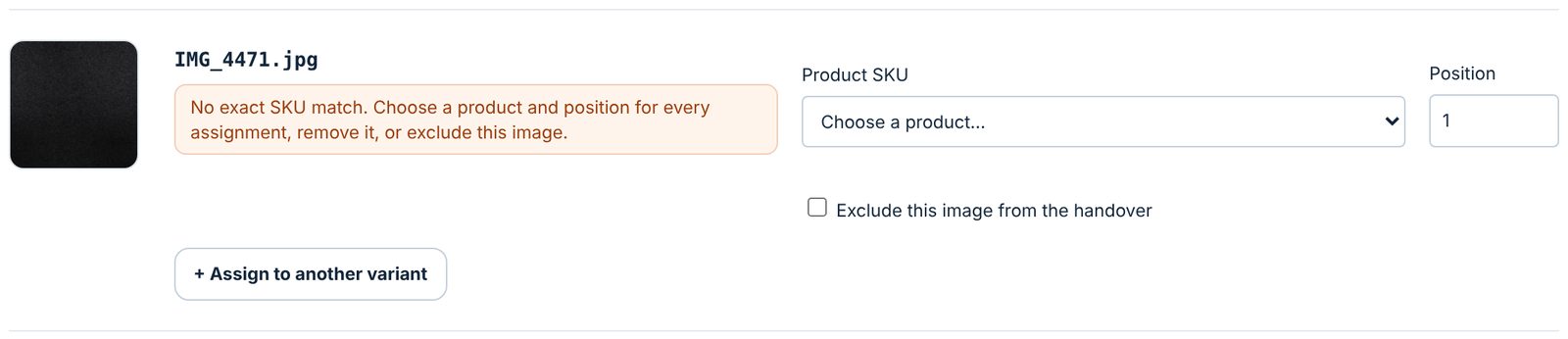
  • IMG_5012.jpgno article number, so you decide

No files of your own yet? Open the workspace and click "Try a sample collection". It loads a small fictional clothing supplier so you can follow every step below.

Choose your files

  1. Product list: upload the supplier's CSV.
  2. Product photos: select all the photos, or choose the whole folder.
  3. Hosted image URLs: skip this the first time. It is for step 6.
  4. Click Match this collection.

Your column names are different? Open Supplier setup and tell Tidrivo which column is the article number. You can save it as a profile for next time.
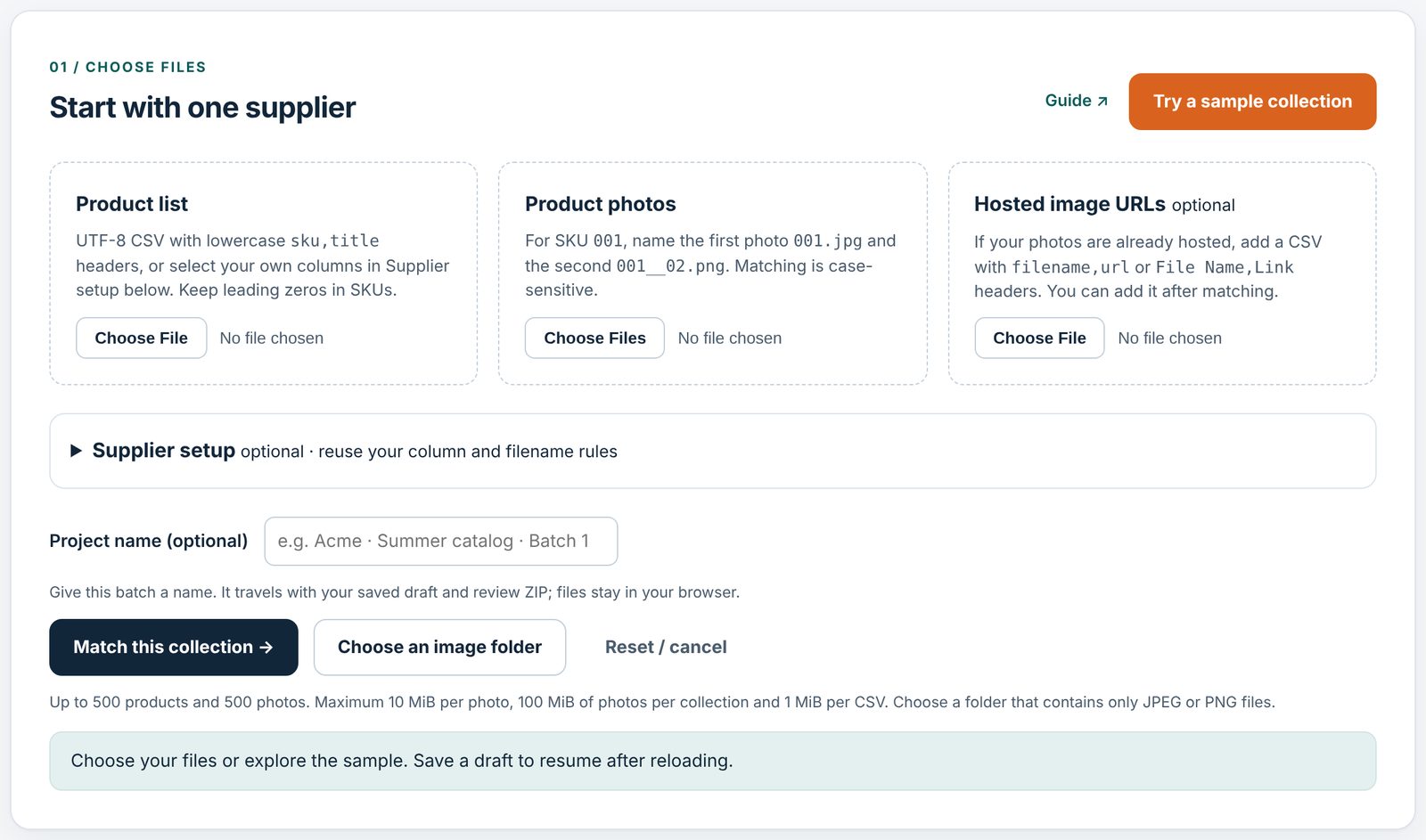
The first step of the workspace: product list, product photos and hosted image URLs.
Step 1 in the workspace.

Tidrivo matches what it can

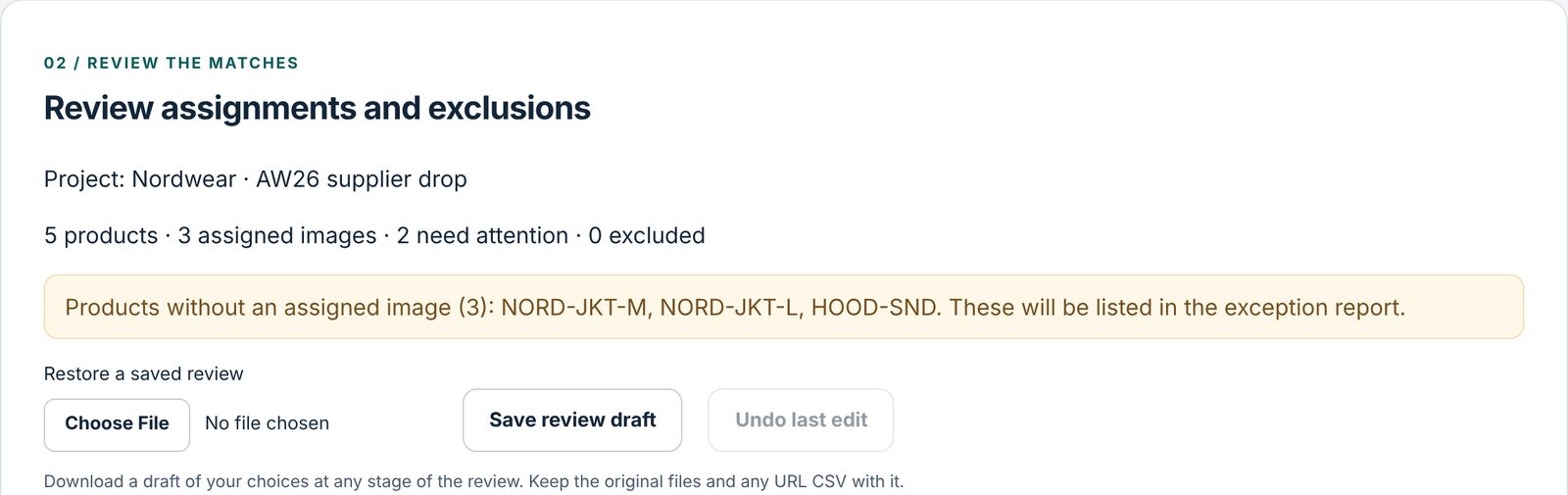
Tidrivo reads every filename and looks for exactly the same article number in the list. Then it shows a summary.

products
how many products are in the list
assigned images
photos with a correct filename, matched automatically
need attention
photos Tidrivo could not place. You decide.
excluded
photos you have left out

The yellow box lists products with no photo at all, so you know before anything goes into the store.

Review summary: 5 products, 3 assigned images, 2 need attention, and products without a photo.
The summary after matching.

Decide what Tidrivo can’t

Every photo has its own row. For each one that needs attention:

  • Product SKU: choose which product the photo belongs to.
  • Position: 1 is the main photo, 2 the second, and so on.
  • Exclude this image: tick it for a blurry duplicate or a photo that doesn't belong.

Why doesn't Tidrivo guess? A camera name like IMG_5012.jpg says nothing about the product, and a filename in lower case could be a different product. A wrong photo on a live product costs more than a few seconds of checking.

Stopping halfway? Click Save review draft. Next time, choose the same files, match, and restore the draft. Your choices come back.

A photo without an article number in its name, waiting for a decision.
Before: no match, waiting for you.
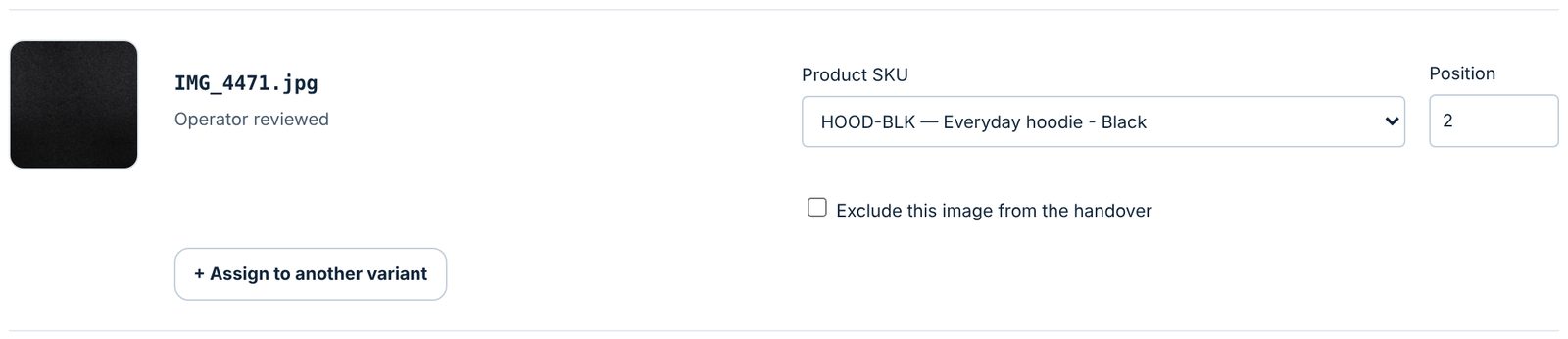
The same photo assigned to the black hoodie as photo 2.
After: assigned to the hoodie as photo 2.

Use one photo for several sizes

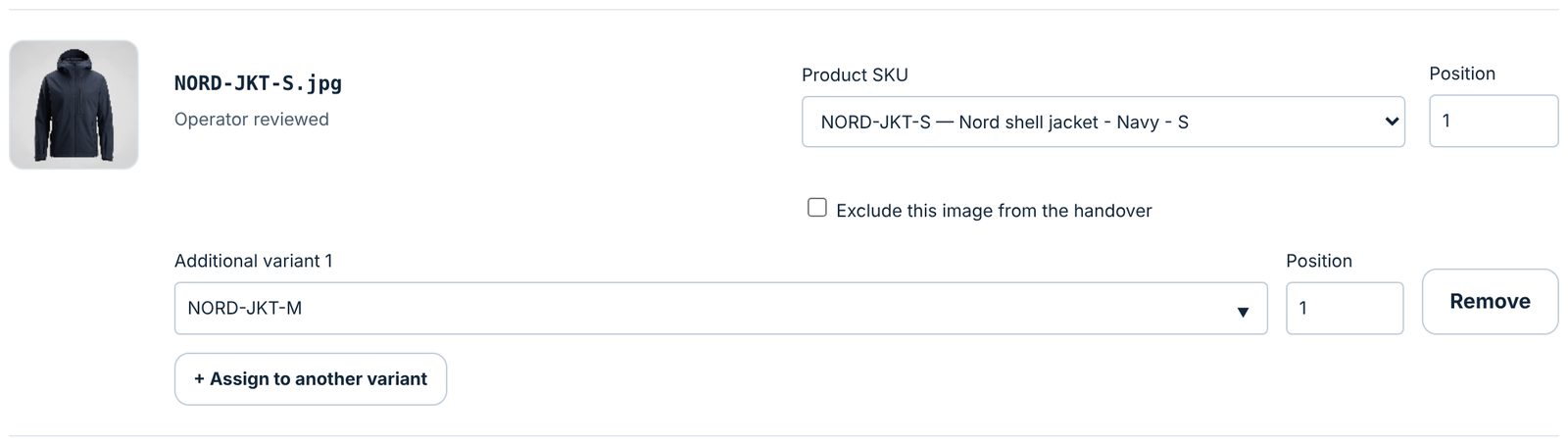
Suppliers often photograph only one size. Click + Assign to another variant and choose the other sizes. The photo is included once in the package but listed on every product.

Tidrivo never does this on its own just because two names look alike. You choose.

The jacket photo for size S also assigned to size M.
The jacket photo shared with size M.

Download the package

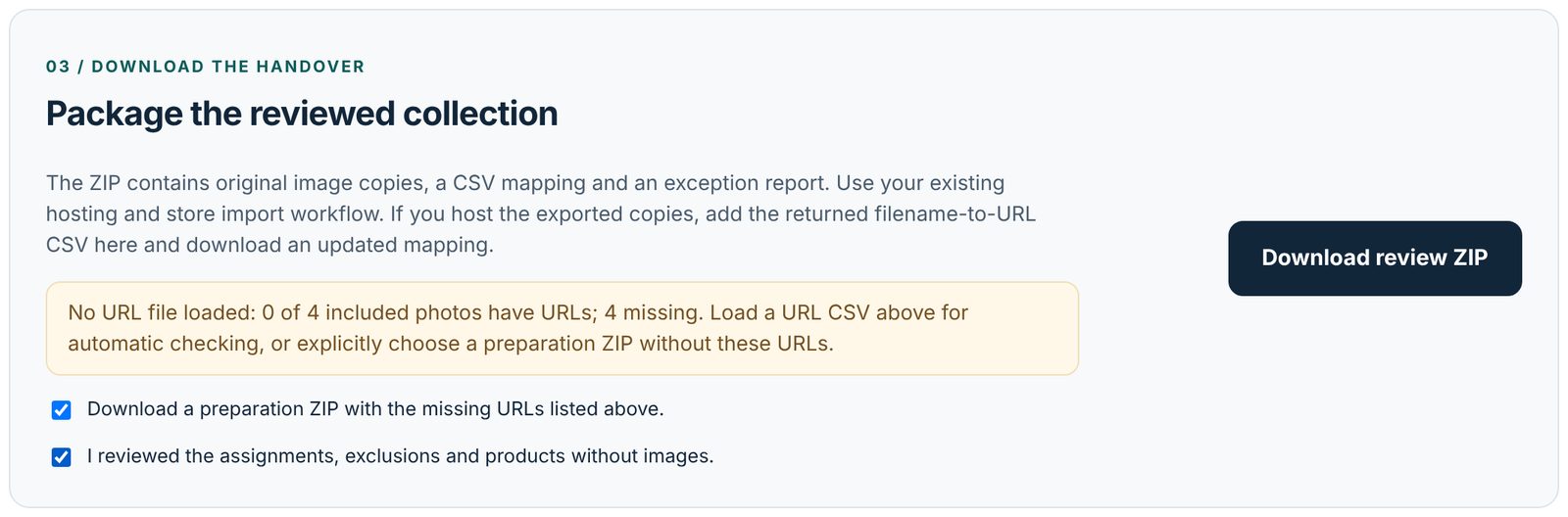
  1. Tick I reviewed the assignments. Nothing downloads without your approval.
  2. No image links yet? Also tick the box for a package without links.
  3. Click Download review ZIP.
The download step with both boxes ticked and the Download review ZIP button.
Approve, then download.

What's in the ZIP

The photos

Unchanged copies in an images folder, with tidy names. A shared photo is included once.

The mapping

mapping.csv: which photo belongs to which product, and in which order.

The exceptions

exceptions.csv: products without a photo, excluded photos and missing links.

Into your store

This part happens in the tools you already use:

  1. Upload the photos to your image host or store, as usual.
  2. It gives you a list of links, one for each photo.
  3. Add that list under Hosted image URLs in Tidrivo. The links land on the right products, and you download an updated mapping.
  4. Import the mapping into your store, for example Shopify. Test a few products first.
What Tidrivo doesn't do

It doesn't upload photos anywhere: everything stays in your browser. It doesn't connect to your store. It doesn't recognise what is in a photo: it reads the filename.

In short

The supplier's mess goes in. Tidrivo sorts what's certain, you decide what isn't, and a tidy package comes out for your store.

Prepare your next supplier drop with Tidrivo.

Try the free demo with the built-in sample files, then run one of your own batches. No account, no card.